Best Office Tech for 2026: 5 Supplyd Picks for a Smarter Workstation
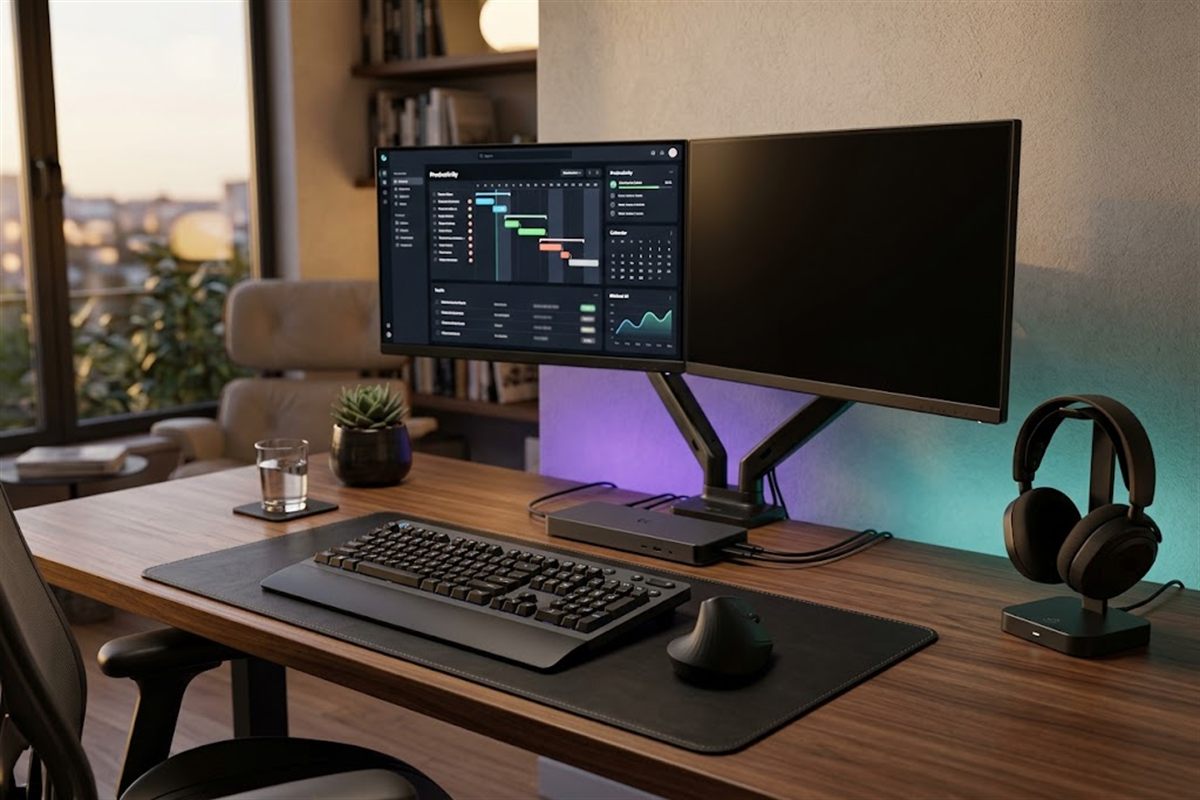
Your workstation can work perfectly and still make every workday harder than it needs to be. The computer turns on. The internet connects. The screen displays. And yet, by mid-afternoon, something is off — your neck aches, you've said "sorry, say that again?" one too many times, or you're unplugging the fourth cable to get to the one you actually need.
Nothing is broken. Everything just feels a little wrong.
The easy answer is to buy something. A new headset. A second monitor. A fancier mouse. But before you spend, it's worth asking a different question: what is actually wrong with my setup?
Start with the problem, not the shopping list
Most workstation frustrations aren't caused by missing equipment. They're caused by how the equipment you already have is set up — the screen at the wrong height, the keyboard in the wrong place, the network connection nobody thought to check, the device that was never really right for the job.
That's the order we work in when someone asks us to look at their setup. First the problem. Then what's actually causing it. Then whether a change — a move, a removal, or occasionally a purchase — is the right fix. The purchase is the last step, not the first.
Here's what that looks like for the problems people bring up most.
Your neck and wrists are telling you something
The problem. By the end of the day your neck, shoulders or wrists are stiff. You've spent hours angled toward a laptop screen that sits below eye level, or reaching for a keyboard positioned so your wrists bend upward instead of lying flat.
Look at this first. Where is the top of your screen relative to your eyes? If you're looking down at it, your neck is doing work it shouldn't. When you type, are your forearms roughly parallel to the floor? If your wrists bend back to reach the keys, that's where the strain comes from. And are you stuck on the laptop's own keyboard and trackpad all day?
What you can do without buying anything. Raise the laptop so the screen comes closer to eye level — a stack of books works while you decide. An external keyboard and mouse let you position your hands where they should be. Adjust the chair so your feet rest flat.
When an upgrade actually helps. If the laptop stays on the desk all day, a laptop stand is the permanent version of the stack of books — it holds the screen at the right height and folds away when you don't need it. And if the keyboard or mouse are the weak point, an ergonomic keyboard-and-mouse combo can help; because it's a combo, the mouse is included, so you're not buying two separate things. One cheap test before any of that: if your mouse skips on a glass or worn surface, a decent mouse pad is the smallest, least expensive change you can make to how your setup feels.
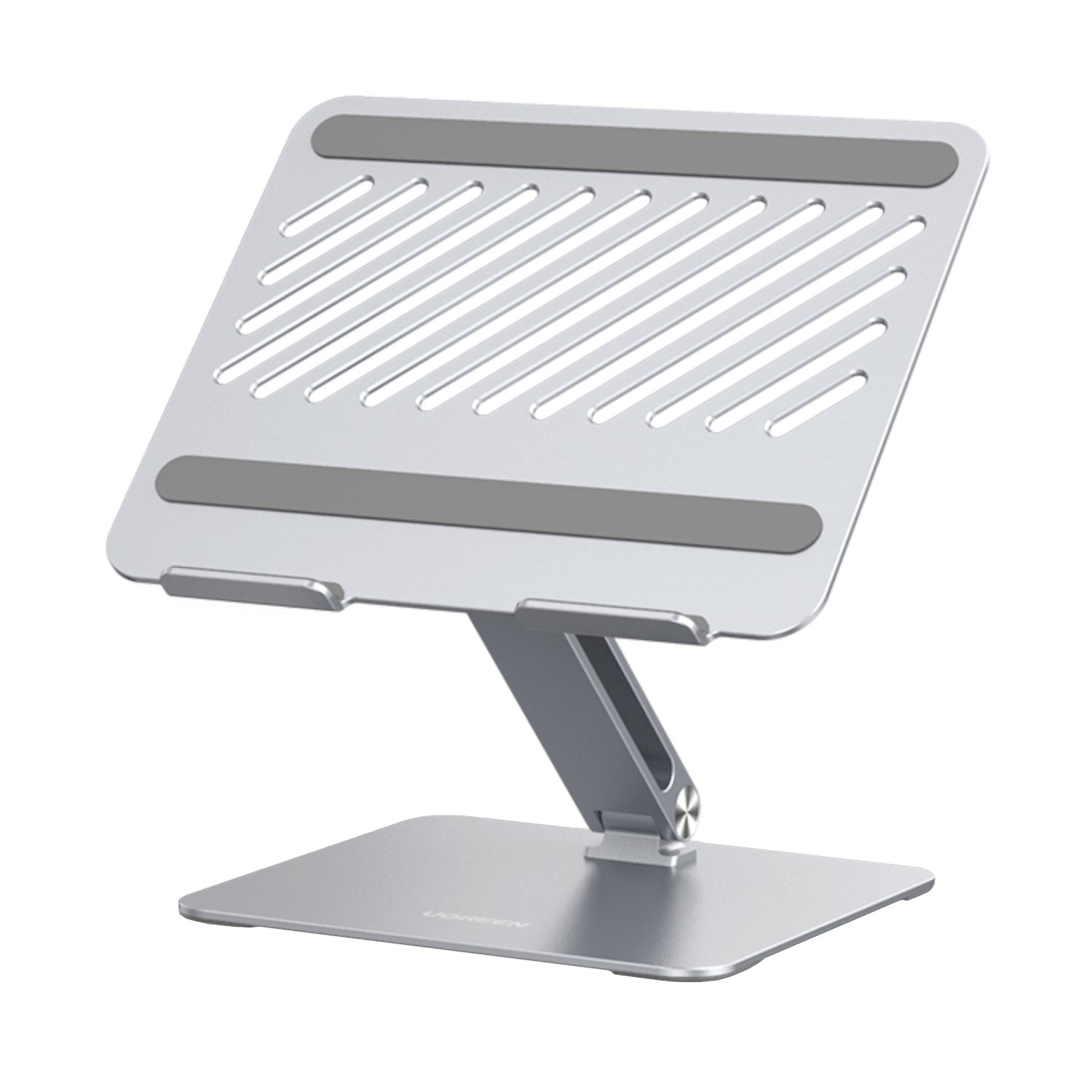
UGREEN Adjustable Laptop Stand
If your screen sits below eye level all day, this is the permanent version of the stack of books. Aluminium, holds up to 5kg, fits laptops up to 17.3", folds flat when you travel.
See it on the store →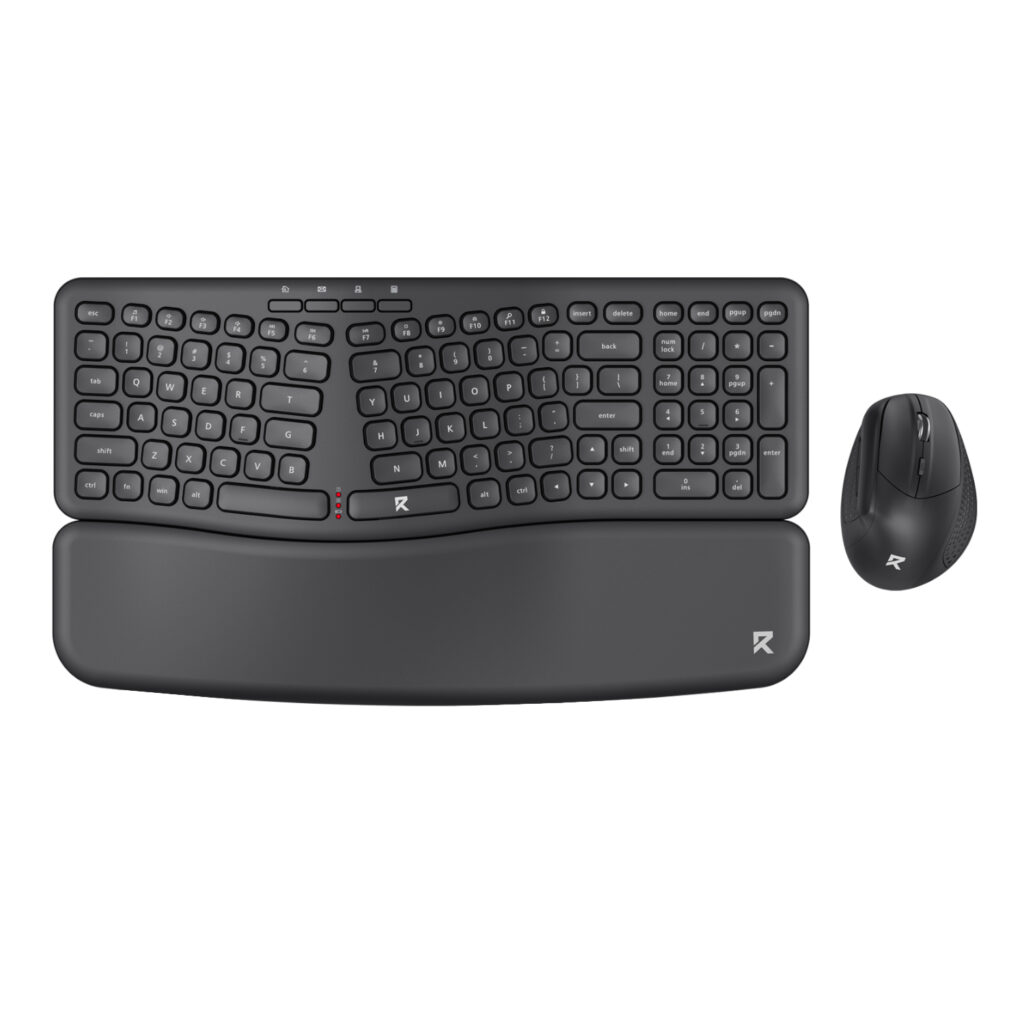
Redragon BS7161 Wireless Keyboard & Mouse Combo
If the keyboard or mouse are the weak point, this covers both in one purchase — a full-size keyboard with a pillowed wrist rest and an ergonomic vertical mouse that promotes a natural grip. The mouse is included, so you don't end up with a drawer full of spares.
See it on the store →Calls sound worse than they should
The problem. "Sorry, say that again?" has become your most-used sentence. Your voice comes through muffled, or the noise around you drowns you out.
Look at this first. What are you actually using — the laptop's built-in mic, earbuds, a headset? Where does the microphone sit relative to your mouth? The further away it is, the more room noise it picks up. And is the connection the issue? A Bluetooth device that drops or switches between your laptop and phone will sound bad no matter how good it is.
What you can do without buying anything. Sit closer to the laptop, or move it closer to you. Close the window. Mute notifications. If wireless keeps dropping, plug in for the call.
When an upgrade actually helps. If you spend hours a day on calls and the problem is genuinely audio — your mic picks up everything except you, or you can't hear people over the background — a headset with a proper noise-cancelling microphone is a real improvement.

WINX CALL Elite AI Noise-Cancelling Wireless Headset
If call audio is genuinely the bottleneck, this keeps your voice clear while muting traffic, chatter and office noise (up to 34dB of AI noise cancellation). Bluetooth, 2.4GHz, USB and Type-C, with up to 27 hours of battery and a busylight for when you're on a call.
See it on the store →Cables, ports, and the daily plug-in ritual
The problem. Too many cables, not enough ports, and a routine of plugging and unplugging every time you sit down or stand up. Sometimes the Wi-Fi drops and your calls or uploads stall.
Look at this first. Which devices actually need to stay connected every day? Of the cables on your desk, how many are permanent and how many are habits? If the network is unreliable, is it the router — or the connection between your desk and it?
What you can do without buying anything. Unplug what you don't use. Route the cables you keep. If your desk has a stable spot near the router, try a network cable before you blame the laptop.
When an upgrade actually helps. If you connect a monitor (or two), a network cable, a drive and a charger every morning, a docking station turns that routine into one connection. One USB-C cable carries displays, network, data and charging.
A very South African note: during load shedding, when the Wi-Fi router reboots and the laptop drops its signal mid-call, a wired Ethernet connection through a dock keeps you online. It's one of those problems you don't know you can solve until someone points it out.
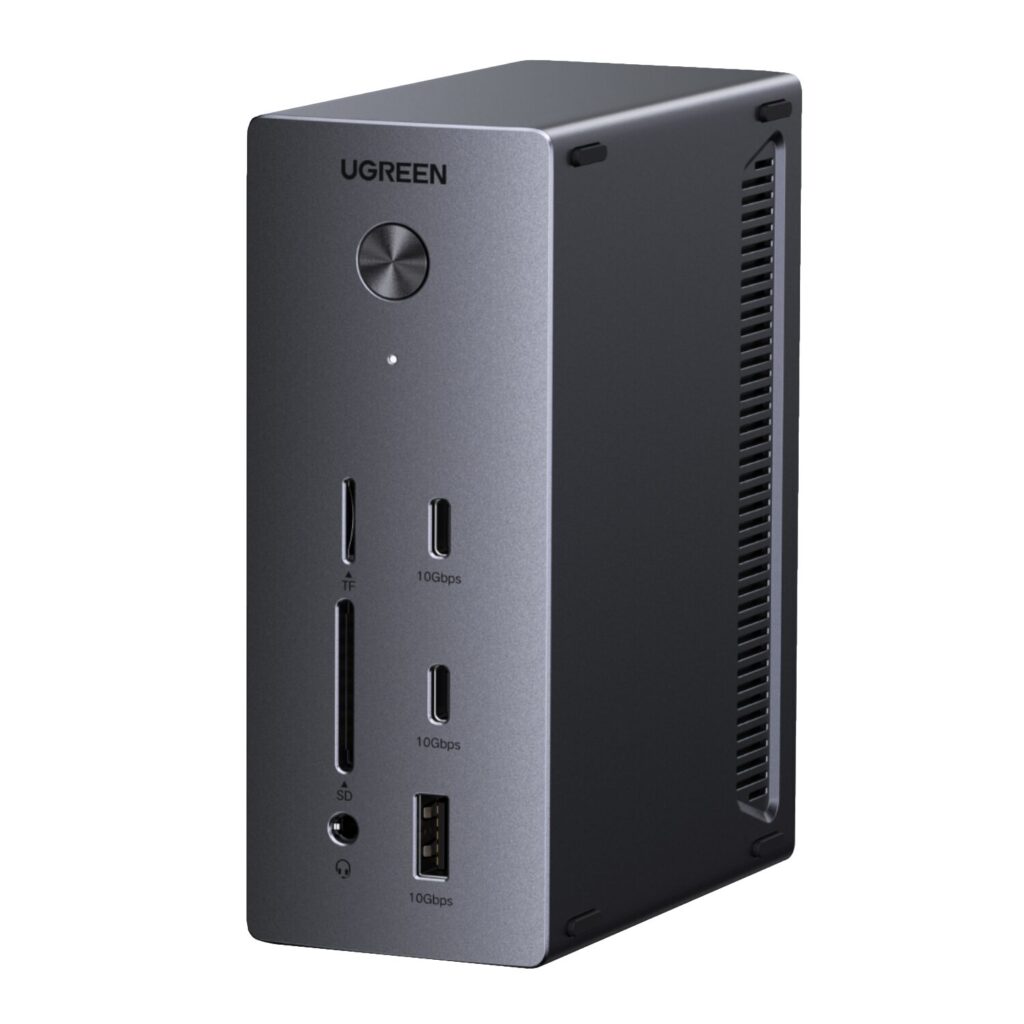
UGREEN 14-in-1 USB-C Docking Station
If you plug several things in every day, this replaces the ritual with one connection: up to three 4K displays, 100W of charging to your laptop, fast data ports, SD/TF card readers and 1Gbps Ethernet that stays up when Wi-Fi drops.
See it on the store →One screen is doing the work of three
The problem. You're forever switching tabs, stacking windows, and squinting. You know a second screen would help, but you don't want to deal with adapters and cables.
Look at this first. Can you already use a second screen with what you have? Many laptops drive an external monitor with no extra hardware. If there's a spare monitor or TV in the house, plug it in for a day and see what it changes before you commit.
When an upgrade actually helps. If you regularly work across two documents side by side — a report and a spreadsheet, a brief and a design — a second screen is one of the most useful changes you can make. The piece that ties it together is the dock above: it's what gives the laptop the ports to drive the extra displays and stay charged while you work.
You probably don't need to buy everything
Here's the honest version of all of the above: for most setups, the answer is one or two changes, not five purchases. A better workstation isn't necessarily a workstation with more equipment. Sometimes it's moving the screen, removing a cable, changing how something connects, fixing a network problem, or replacing one component that was never right for the job.
If you're not sure what's wrong, that's fine
If you're looking at your workstation and know something isn't working but aren't sure what needs changing, that's a better conversation to have before you start buying things. Tell us what's annoying you — the symptoms, not a shopping list. We'll help you work out what's actually going on, and whether the fix is a move, a removal, or a purchase.
Not sure what your workstation actually needs? Tell us what's bothering you and we'll help you figure it out.
Talk to SupplydKeep Reading
Related reads from the Supplyd blog:
- The Hidden Cost of Buying Business Technology — why cheap tech can end up costing more.
- Where Is Your Business Losing Money in Procurement?
Product details, prices and availability change often. Always confirm on the product page before purchasing. See our Terms for details.